Every Windows 11 PC comes loaded with apps, and the idea is to get you started without much hassle. Of course, not all those apps are useful, at least not to everyone. I recently took the time to remove a few Microsoft apps I wasn’t using. I mostly did this to clean up, but I’m glad I did it, because my PC runs much more smoothly than before.
OneDrive
Impossible to ignore
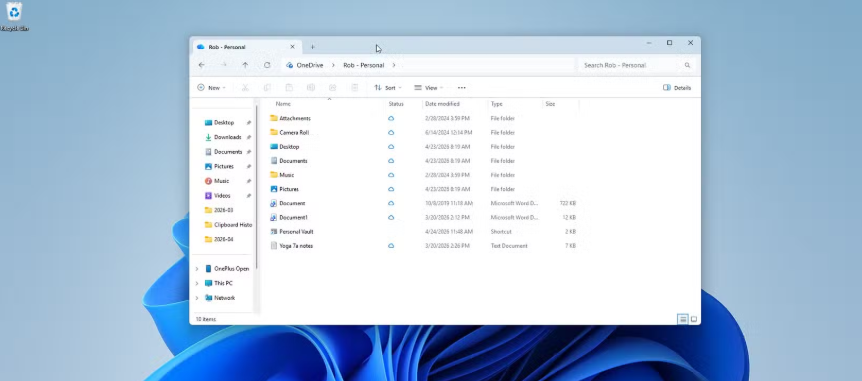
OneDrive is one of those apps you either use every day or never touch at all. There’s rarely an in-between. Since I use Google Drive for storage, OneDrive is dead weight on my PC.
By default, it launches every time Windows boots and nags you to back up your photos, videos, documents, and pretty much everything else to it. And even if you disable it as a startup app, it still shows up in File Explorer, the Settings app, and a bunch of other places.
Thankfully, getting rid of OneDrive isn’t much different from removing any other app. Head to Settings > Apps > Installed apps, click the three-dot icon next to OneDrive, and choose Uninstall. What’s even more convenient is that Windows lets me add Google Drive to File Explorer, so I can use it to back up stuff easily.
Xbox
For gamers

Every Windows 11 PC comes loaded with apps, and the idea is to get you started without much hassle.
Of course, not all those apps are useful, at least not to everyone.
I recently took the time to remove a few Microsoft apps I wasn’t using.
I mostly did this to clean up, but I’m glad I did it, because my PC runs much more smoothly than before.
Copilot
AI is cool, but unnecessary
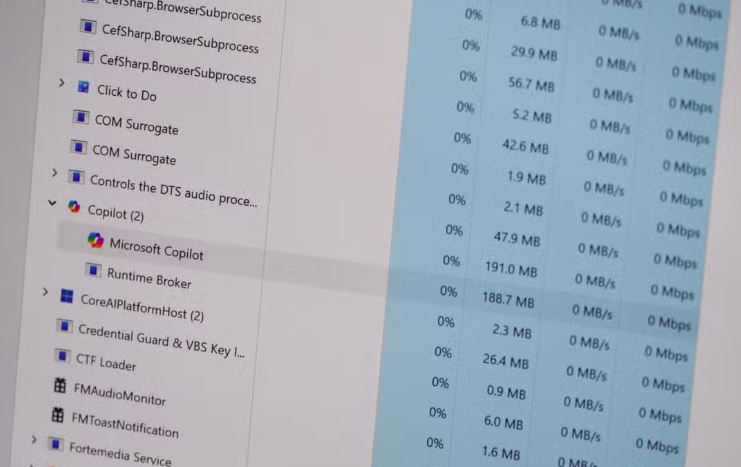
Microsoft really wants everyone to use Copilot, so it’s no surprise that it’s now everywhere on Windows 11. You’ll find it on the taskbar, in its own dedicated app, and even baked into apps like Edge and Notepad. It’s hard to miss, but what annoys me more is that it uses CPU and RAM in the background.
The Copilot desktop app is web-based, so it essentially runs like a mini browser. That’s a lot of overhead for something I rarely open. If you don’t touch it either, Windows lets you remove it without much fuss. You can still use Copilot inside any browser after this, so it’s not like you’re locked out completely.
And if you don’t like AI in general, you can strip it out of everywhere else in Windows 11 too.
Outlook
Not as good as it once was
Windows 11 ships with the new Outlook, which is now your only option since Microsoft retired the Windows Mail app.
If you use Microsoft 365, Outlook is a no-brainer.
I personally prefer web clients for checking email, and I rely on the email app on my phone for notifications, so Outlook is another app that just sits there on my PC.
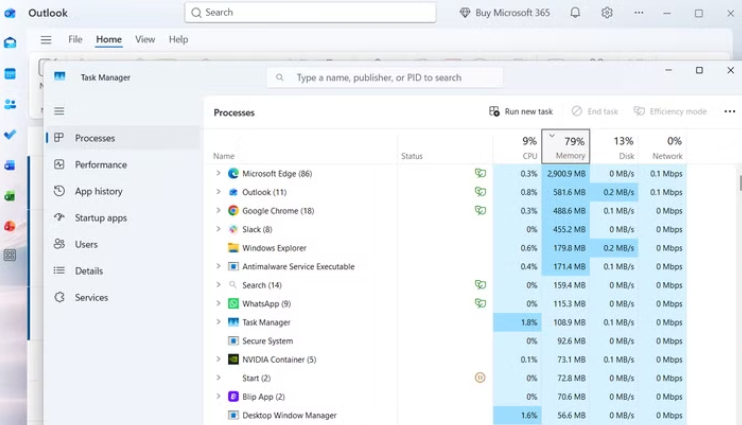
Even if you like it, Outlook isn’t exactly lightweight.
It can be a RAM hog and use anywhere from 800MB to 1GB of memory.
That’s a lot for an email app.
There are plenty of alternatives, like Wino Mail that are lighter and far better.
Phone Link
This was the toughest to give up
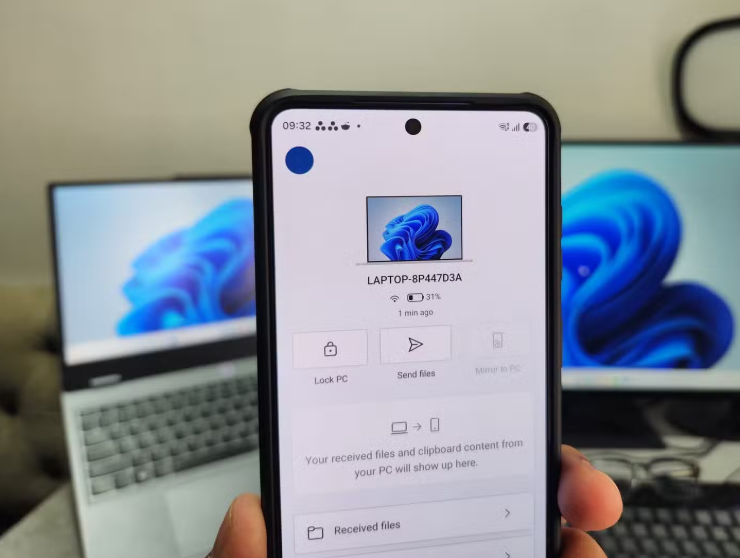
Phone Link has to be the most useful app on this list.
I work on a PC all day, and it’s hard to deny how handy it is to stay on top of phone notifications and using my favorite apps without picking up my phone.
But I have a couple of issues with it.
The first is that it doesn’t work well all the time.
Every so often, I’d run into connection problems, and it just wouldn’t work the way it should.
The second is battery drain. Linking your phone to your PC is great, but that constant communication chews through the phone’s battery.
So as useful as Phone Link is, I let it go.
Bloatware in general is bad news
Bloatware in general is bad news for your PC.
Beyond these five apps, your PC is probably full of useless tools like Weather, Camera, Sound Recorder, To Do, and Clipchamp.
And that’s all on top of all the apps your manufacturer preloads.
This could be an antivirus tool or a PC management tool.
The rule is simple.
If you don’t need it, remove it.
by Kofi Acquah